
In this tutorial, we'll create two Spring Boot microservices, an API Gateway, and an Eureka Server. The API Gateway will route requests to the appropriate microservices. We'll use Spring Boot version 3.2+ and Spring Cloud 2023.x.x.
Related Spring Boot Microservices Tutorials
Spring Boot Microservices Communication Example using RestTemplate
Spring Boot Microservices Communication Example using WebClient
Spring Boot Microservices Communication Example using Spring Cloud Open Feign
Spring Boot Microservices — Spring Cloud Config Server
Spring Boot Microservices — Spring Cloud Netflix Eureka-based Service Registry
Spring Boot Microservices — Spring Cloud API Gateway
Spring Boot Microservices API Gateway with Automatic Routes Mapping
Spring Cloud API Gateway Global Filter Example — Spring Boot Microservices
Event-Driven Microservices using Spring Boot and Kafka
Spring Boot Microservices with RabbitMQ Example
Spring Boot Microservices with Apache Kafka Example
Spring Boot Microservices REST API Example
Spring Boot Microservices with Spring Cloud Stream Example
Angular Spring Boot Microservices Example
React JS + Spring Boot Microservices Tutorial
Let's start the tutorial!
Introduction to API Gateway
An API Gateway is a server that acts as a single entry point for multiple backend services in an application. It helps manage, route, and secure API requests from users to the correct services. It also handles tasks like authentication, rate limiting, and logging.
API Gateways simplify the process of integrating various services by providing a unified interface for clients to interact with. This helps improve security, performance, and scalability of applications.
How API Gateway Uses Eureka Server
Eureka Server acts as a service registry where all microservices register themselves and periodically send heartbeats to indicate their availability. The API Gateway queries Eureka Server to discover the instances of microservices and route the requests to the appropriate instance based on the service name.
Prerequisites
- JDK 17 or later
- Maven or Gradle
- IDE (IntelliJ IDEA, Eclipse, etc.)
Step 1: Set Up the Eureka Server
1.1 Create the Project
Use Spring Initializr to create a new project with the following dependencies:
- Eureka Server
1.2 Configure application.properties
Set up the application properties for the Eureka Server.
server.port=8761
spring.application.name=eureka-server
eureka.client.register-with-eureka=false
eureka.client.fetch-registry=false
1.3 Enable Eureka Server
Add the @EnableEurekaServer annotation to the main application class.
package com.example.eurekaserver;

import org.springframework.boot.SpringApplication;
import org.springframework.boot.autoconfigure.SpringBootApplication;
import org.springframework.cloud.netflix.eureka.server.EnableEurekaServer;

@SpringBootApplication
@EnableEurekaServer
public class EurekaServerApplication {
    public static void main(String[] args) {
        SpringApplication.run(EurekaServerApplication.class, args);
    }
}
Step 2: Set Up product-service
2.1 Create the Project
Use Spring Initializr to create a new project with the following dependencies:
- Spring Web
- Eureka Discovery Client
2.2 Configure application.properties
Set up the application properties for product-service.
server.port=8081
spring.application.name=product-service
eureka.client.service-url.default-zone=http://localhost:8761/eureka/
2.3 Create a Product Model
Create a simple Product model to represent the product data.
package com.example.productservice;

public class Product {
    private String id;
    private String name;
    private double price;

    // Constructor, getters, and setters
    public Product(String id, String name, double price) {
        this.id = id;
        this.name = name;
        this.price = price;
    }

    public String getId() {
        return id;
    }

    public String getName() {
        return name;
    }

    public double getPrice() {
        return price;
    }
}
2.4 Create a Controller
Create a controller to handle product-related requests.
package com.example.productservice;

import org.springframework.web.bind.annotation.GetMapping;
import org.springframework.web.bind.annotation.PathVariable;
import org.springframework.web.bind.annotation.RestController;

@RestController
public class ProductController {

    @GetMapping("/products/{id}")
    public Product getProduct(@PathVariable String id) {
        // In a real application, this data would come from a database
        return new Product(id, "Sample Product", 99.99);
    }
}
Step 3: Set Up order-service
3.1 Create the Project
Use Spring Initializr to create a new project with the following dependencies:
- Spring Web
- Eureka Discovery Client
- OpenFeign
3.2 Configure application.properties
Set up the application properties for order-service.
server.port=8082
spring.application.name=order-service
eureka.client.service-url.default-zone=http://localhost:8761/eureka/
3.3 Enable Feign Clients
Enable Feign clients by adding the @EnableFeignClients annotation in the main application class.
package com.example.orderservice;

import org.springframework.boot.SpringApplication;
import org.springframework.boot.autoconfigure.SpringBootApplication;
import org.springframework.cloud.openfeign.EnableFeignClients;
import org.springframework.cloud.netflix.eureka.EnableEurekaClient;

@SpringBootApplication
@EnableFeignClients
@EnableEurekaClient
public class OrderServiceApplication {
    public static void main(String[] args) {
        SpringApplication.run(OrderServiceApplication.class, args);
    }
}
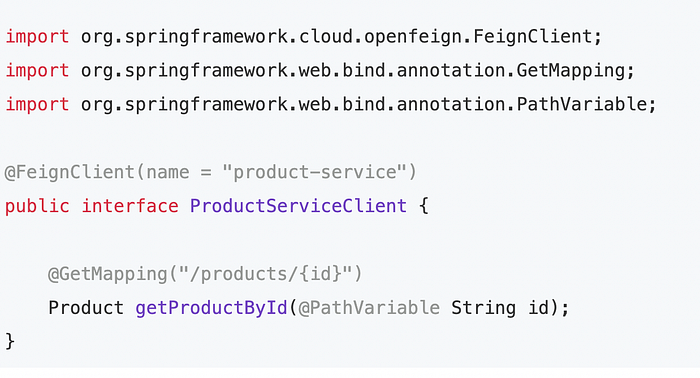
3.4 Create a Product Client
Create a Feign client interface to communicate with the product-service.
package com.example.orderservice;

import org.springframework.cloud.openfeign.FeignClient;
import org.springframework.web.bind.annotation.GetMapping;
import org.springframework.web.bind.annotation.PathVariable;

@FeignClient(name = "product-service")
public interface ProductServiceClient {

    @GetMapping("/products/{id}")
    Product getProductById(@PathVariable String id);
}
3.5 Create a Product Model
Create a Product model to match the one in product-service.
package com.example.orderservice;

public class Product {
    private String id;
    private String name;
    private double price;

    // Constructor, getters, and setters
    public Product() {}

    public Product(String id, String name, double price) {
        this.id = id;
        this.name = name;
        this.price = price;
    }

    public String getId() {
        return id;
    }

    public String getName() {
        return name;
    }

    public double getPrice() {
        return price;
    }
}
3.6 Create a Controller
Create a controller to handle order-related requests and use the ProductServiceClient to fetch product details.
package com.example.orderservice;

import org.springframework.web.bind.annotation.GetMapping;
import org.springframework.web.bind.annotation.PathVariable;
import org.springframework.web.bind.annotation.RestController;

@RestController
public class OrderController {

    private final ProductServiceClient productServiceClient;

    public OrderController(ProductServiceClient productServiceClient) {
        this.productServiceClient = productServiceClient;
    }    @GetMapping("/orders/{productId}")
    public String createOrder(@PathVariable String productId) {
        Product product = productServiceClient.getProductById(productId);
        return "Order created for product: " + product.getName() + " with price: $" + product.getPrice();
    }
}
Step 4: Set Up the API Gateway
4.1 Create the Project
Use Spring Initializr to create a new project with the following dependencies:
- Spring Cloud Gateway
- Eureka Discovery Client
4.2 Configure application.properties
Set up the application properties for the API Gateway.
server.port=8080
spring.application.name=api-gateway
eureka.client.service-url.default-zone=http://localhost:8761/eureka/
spring.cloud.gateway.discovery.locator.enabled=true
spring.cloud.gateway.discovery.locator.lower-case-service-id=true
4.3 Enable Eureka Client and Gateway
Enable Eureka client and gateway functionality by adding the @EnableEurekaClient annotation in the main application class.
package com.example.apigateway;

import org.springframework.boot.SpringApplication;
import org.springframework.boot.autoconfigure.SpringBootApplication;
import org.springframework.cloud.netflix.eureka.EnableEurekaClient;

@SpringBootApplication
@EnableEurekaClient
public class ApiGatewayApplication {
    public static void main(String[] args) {
        SpringApplication.run(ApiGatewayApplication.class, args);
    }
}
Step 5: Run the Microservices
- Start the Eureka Server by running
EurekaServerApplication. - Start
product-serviceby runningProductServiceApplication. - Start
order-serviceby runningOrderServiceApplication. - Start the API Gateway by running
ApiGatewayApplication.
Step 6: Test the Communication
Open your browser or use a tool like Postman to test the endpoints through the API Gateway:
product-service:http://localhost:8080/product-service/products/1order-service:http://localhost:8080/order-service/orders/1
The response from order-service should include the product details fetched from product-service.
Conclusion
You have successfully set up two Spring Boot microservices, an API Gateway, and an Eureka Server. The API Gateway uses Eureka Server for service discovery, allowing it to route requests to the appropriate microservices.
This setup demonstrates how to use Spring Cloud components to create a scalable and maintainable microservices architecture. This setup can be expanded to include more microservices and more complex communication patterns.