

Web API's today are one of the most common technologies and entry points to Big Data. Many public and private organisations that hold, collect or process data, now have some form of API available for limited public use. NASA, The Weather Channel, Flight Radar and even the US Government — there is pretty much an API out there for anything.
For quite some, accessing APIs was only a privilege for those that knew how to code using languages like Python, JavaScript or PHP. Even once you learnt how to code in those languages, you then had the issue of dealing with JSON or XML data that often return from a REST API call.
Thankfully today it is entirely possible to connect to an API using good old Excel and handle JSON and XML data at the same time. For the purpose of this example, we will be querying the Random User API which can be found here: https://random-data-api.com/
The Random Data API
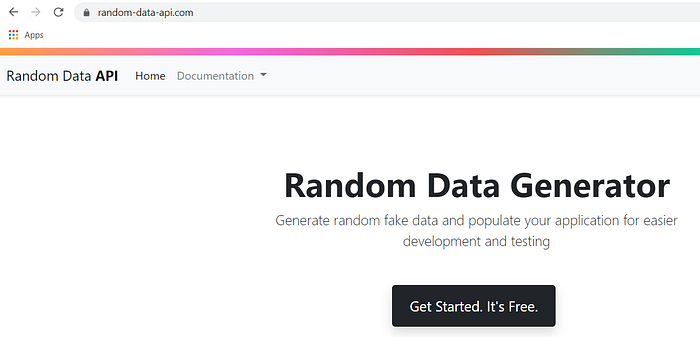
The API is Public (as opposed to Private) in that it can be publically accessed by using the URL https://random-data-api.com/api/v2/ this is also the Base URL for all API requests which we need to include when querying it.
Tip: Public APIs don't require any special accesses, but Private APIs do, these often are only accessible using an API Key which we will cover in another article.
API Parameters
With APIs, you need to tell them what it is you are searching for, this is where Parameters come in. Parameters allow you to specify your API request for specific categories of data.
The Random Data API can return either a list of random users, addresses, banks, appliances, beers, blood types or credit cards. To choose from one of these we need to add an extra line of text to the end of our Base URL

So if we want a list of users we should use:
https://random-data-api.com/api/v2/users/
We can also specify the number of records we want i.e. the number of users by using another little bit of text
https://random-data-api.com/api/v2/users?size=3
This will return 3 random users — we will use this URL for our API Call
Now let's look at Excel!
Microsoft Excel 2016 & Power Query
To access an API using Excel, we first need the Power Query add-in. Power Query is an ETL (extract, transform and load) tool that enables advanced Data preparation (part of Microsoft Power Platform suite)
The good news for those of you that have Microsoft Excel 2016 or newer, is that Excel comes with Power Query by default. If you have an older version of Excel you will need to download Power Query as an add-in here
Once you have Power Query, if you open a new spreadsheet and go to the Ribbon Menu and Choose Data you will see the following options available to you:

From this menu, to get started we need to click on "From Web" and that will bring up a new pop-up window:

In this window, we need to enter our URL or Base Anchor URL which in this example is https://random-data-api.com/api/v2/ along with our parameters users?size=3 this will return 3 records for random users. Choose the Basic option for now and click OK
In the next window Excel should now show you a List of 3 Records confirming it has pulled 3 rows of data from the API

Clicking on "To Table" will now convert our 3 rows of data into a table format, when the window below appears leave the default setting as None and Show as errors then click OK

You will know your data has converted into a table when you see the List header turn into "Column1"

Next we want to select the box that shows two opposite arrows in Column1 this will open up a list of all the fields in our API query, make sure you untick "Use original column name as prefix" and this will give you clean column headings as you will see shortly. Finally click "OK" to expand our data and see all the fields behind our query

We now finally have some data and fields we can see for our random users, fields like first name, last name and even ID fields

Nested data from API queries
If you now scroll across to inspect our data you will see some columns show "Record" instead of actual data, like the field Employment

Due to the nature of JSON / XML data that return from API results, they are often Nested, in other words these Records are another layer down. To see these we need to expand the field/column the same way we did at the start, left click on the arrows facing opposite and this will show you another preview box this time containing 2 further fields which sit underneath the Employment field, Power Query handles this easily for us and expands to introduce some new columns

The result? the field Employment now disappears and in its place we get 2 more fields named Title and Key_Skill

Continue expanding all other fields which simply show "Record" until you are happy with your table.
To now finally view the results click on the option under File which reads "Close & Load" that will close Power Query and load our table into an Excel tab
Finally we are done!

We now have our data in a Table within Excel, from here we can filter the data, pivot it, or amend it further as we see fit.
Conclusion
Learning about APIs and how they work is essential if you want to become a skilled Data Scientist, Analyst or Engineer. But APIs don't have to be complex, learn to use an effective tool like Power Query and find more public APIs, take a look at Github's API catalogue here and build your experience.
Next time we will look at how we can:
- Query an API using Python code
- Query an API using an ETL tool like Alteryx
- Access a Private API that requires an API Key using Excel
- Push data from our API query into a Data Warehouse (Snowflake)
- Create our very own API and push it to the Web
Please subscribe and follow to learn more about API development in the near future :)