

We've all been there — staring at a lengthy, complex document that needs to be transformed into a polished PowerPoint presentation. Maybe you're on a tight deadline, or perhaps procrastination has set in, making the task feel even more daunting. Whether it's for a last-minute work report or a presentation for your next class, the stress of creating slides can be overwhelming.
So, how do you avoid the scramble? Is there a way to take the burden off your shoulders and speed up the process?
The answer is yes! Thanks to AI-powered tools, automating the creation of PowerPoint presentations is now a reality.
Using an AI slide maker is a different process than chatting with ChatGPT (spoiler alert: ChatGPT can't really help you).
If you want to make professional PowerPoints with AI, you should start by researching the best AI presentation makers. You want to find a program that's compatible with PowerPoint and creates high-quality outputs. We'll walk you through these steps below.
Choose a capable AI slide maker add-in for PowerPoint
First, find an AI program that has the capacity to make a presentation in PowerPoint. If you have a ChatGPT subscription, you might want to start with a new chat, but unfortunately ChatGPT cannot create PPT files.
To make a basic presentation with AI, you can also try Microsoft's chatbot Copilot. However, if you need a professional-looking slide deck that's ready to go up on the screen with minimal revisions, you'll have to use a dedicated AI presentation maker that works in PowerPoint.
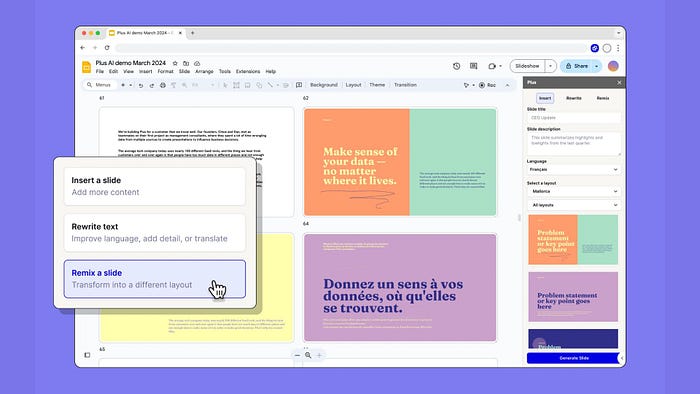
Plus AI is a PowerPoint add-in that can help you make new PowerPoints or edit existing presentations using AI. With Plus AI, all you need to do is input a prompt or document, choose a template, and hit "Generate" — the slide maker will do the rest for you.
Install and launch the Plus AI slide maker in PowerPoint
Before you can make a new presentation with AI, you'll need to install and open the Plus AI PowerPoint add-in. Here's how:
1. Navigate to Add-ins > Get Add-ins. The button should appear on the ribbon in PowerPoint. On your desktop PowerPoint app, you'll find it under the "Insert" tab.
2. Find the Plus AI add-in using the search bar. Then, click "Add" to install.
3. Access Plus AI. You can find it in the ribbon, or by clicking Insert > Add-ins > My add-ins.
4. Create a Plus AI account. At this point, you can try Plus AI for free for 7 days before committing to a subscription.
5. Launch Plus AI and choose the "+ New presentation" option.
How to convert a PDF to a PowerPoint
Do you have reference materials for your PowerPoint in a PDF or Word document? The good news is you can use these to create your presentation.
Plus AI will automatically read your materials and figure out how to place the information on slides, pick the best layouts, and create your deck. Here's how:
1. Choose the "Upload a File" function after launching the add-in and clicking on "+New presentation".
2. Click on Choose File and find the file on your computer.
3. Navigate to the template library. Once the file is uploaded, click on "Choose a template."
4. Choose a template. You can browse through the template catalog and preview each template to see the different slide layouts it includes.
5. Generate the presentation.
That's it — after a few minutes, the Plus AI presentation will start appearing.
How to edit your AI-generated presentation
After creating a presentation using Plus, you can edit and manipulate all of your slides like they are normal PowerPoint slides.
If you want to continue using AI to edit your slides, you can ask Plus to do it for you. Here's how:
1. Go to "Remix a slide" under the "Edit with AI" menu.
2. Choose a new layout from the "Layout" menu. Then, click the 'Remix Slide" button.
The remixed slide will show up in a few seconds:
Rewriting is just as easy as reformatting. Just select the option in the editing menu:
1. Click on "Rewrite text" in the "Edit with AI" menu.
2. Describe the revision to Plus AI. You can tell Plus AI to write more or write less or write in a different style or language.
The revised slide content should appear quickly on the screen:
In some situations, you may find that a mix of manual and AI edits is the best way to put the finishing touches on your presentation.
Tips for preparing an AI-generated PowerPoint presentation
If you're new to using AI PowerPoint makers, here are two important tips to get you started:
- Start with a dedicated AI PowerPoint maker — If you don't use a dedicated AI PowerPoint maker, you're likely to run into formatting problems down the road or the inability to share your presentation.
- Experiment with different inputs — Try uploading files, using prompts, and editing your AI instructions. The more you practice, the easier it will be to start getting great outputs from your AI tool.
Resources for making PowerPoint presentations with AI
Plus AI has an extensive set of resources for making PowerPoint presentations. Check out their free presentation icons, free PowerPoint macros, and their free AI tools like the Word to PPT converter.

This story is published on Generative AI. Connect with us on LinkedIn and follow Zeniteq to stay in the loop with the latest AI stories.
Subscribe to our newsletter and YouTube channel to stay updated with the latest news and updates on generative AI. Let's shape the future of AI together!
