
Overview
Continuing from Part 1, this lab expands our Wazuh deployment by adding several key integrations. We will connect VirusTotal and enable deeper visibility into Windows activity by collecting Windows Defender, Sysmon, and PowerShell logs.

By default, Wazuh records only events that generate alerts. In this lab, we will change that behaviour and configure Wazuh to ingest all relevant logs, even when no alert is triggered. This transforms Wazuh from a simple alerting platform into a fully functional SIEM, capable of supporting investigations, detection engineering, and proactive threat hunting.
Lab Preparation
Create a free VirusTotal account if you do not already have one. After logging in, navigate to your profile and locate your API key. Copy the API key and store it securely, as it will be required during the integration process.

VirusTotal Overview
VirusTotal is a free online service used to analyze files, URLs, and IP addresses for malicious activity. It aggregates detection results from more than seventy antivirus engines and URL reputation providers, delivering detailed analysis reports for submitted artifacts. In addition to automated scanning, users can contribute comments and intelligence, helping improve detection accuracy and strengthening community driven threat awareness.
VirusTotal also provides an API that supports both paid subscription plans and a free tier. The free tier allows up to four requests per minute with a maximum of five hundred lookups per day, which is sufficient for controlled lab testing and small scale integrations.
How the VirusTotal Integration Works
Wazuh integrates with VirusTotal through its File Integrity Monitoring module. This allows Wazuh to observe files that are created, modified, or deleted within monitored directories.
By default, Wazuh detects file changes based on a scheduled scan interval defined in the ossec.conf configuration file. In this lab, real time monitoring is enabled instead of periodic scanning to ensure immediate detection of file activity.
Once a directory is configured for real time monitoring and the VirusTotal integration is enabled, Wazuh responds to file changes by generating alerts and extracting the file hash. That hash is then sent to VirusTotal, where it is compared against known malware signatures and reputation data.
Integrating VirusTotal with the Wazuh Manager
This integration automatically submits the hash of any newly created, downloaded, or modified file to VirusTotal when the file appears in a monitored directory. In this setup, monitoring is limited to the Downloads folder to avoid exceeding the daily API request limit imposed by the free VirusTotal tier.
To enable the integration, add the VirusTotal configuration block to the following file on the Wazuh manager:
/var/ossec/etc/ossec.conf
Be sure to replace the placeholder value with your own VirusTotal API key before saving the file.
sudo nano /var/ossec/etc/ossec.conf
<!-- VirusTotal Integration -->
  <integration>
    <name>virustotal</name>
    <api_key>API_KEY</api_key> <!-- Replace with your VirusTotal API key -->
    <group>syscheck</group>
    <alert_format>json</alert_format>
  </integration>
Once again, be sure to add your own VirusTotal API key.
Restart wazuh-manager:
sudo systemctl restart wazuh-managerConfigure Wazuh Agent
Since we already configured FIM for the Downloads folder in part one, we do not need to change the agent. If you did not complete part one or want to check to make sure FIM was set up, see the instructions below.
On the Windows VM, use a text editor (notepad++ or notepad) and edit the C:\\\\Program Files (x86)\\\\ossec-agent\\\\ossec.conf file and add the following entries to track file changes in the Downloads folder.
<!-- Directory Monitoring. -->
<directories check_all="yes" realtime="yes">C:/Users/m122/Downloads</directories>
Testing
Use the PowerShell script below to download the EICAR test file to the Downloads directory on your Windows virtual machine.
The EICAR Anti Virus Test File is a harmless file created by the European Institute for Computer Antivirus Research and the Computer Antivirus Research Organization. It is widely used to verify that antivirus and security monitoring solutions are functioning correctly. Rather than deploying real malware, which could be dangerous and disruptive, the EICAR file safely triggers detection mechanisms without causing any actual harm to the system.
This makes it ideal for validating antivirus engines, endpoint detection tools, and SIEM integrations in a controlled lab environment.
Run the PowerShell script below to download the test file.
Invoke-WebRequest -Uri https://secure.eicar.org/eicar.com -OutFile C:/Users/m122/Downloads/eicar.comAlert
After downloading the eicar file with the PowerShell script above, check the Alerts on the Wazuh dashboard. As seen below, the file created a VirusTotal Alert and 61 AV engines detect the file as mallicious.

Cross referencing that by manually uploading the eicar file to the VirusTotal website we see the same results.

VirusTotal Integration Summary
By automating file hash submissions to VirusTotal, we significantly improve our ability to identify potentially malicious files as soon as they appear on the system. This integration adds external threat intelligence to our lab, allowing Wazuh to enrich alerts with reputation data from multiple antivirus engines. We will extend our visibility further by integrating Microsoft Defender.
Logging Versus Detection (Alerts)
Out of the box, Wazuh primarily records events that match predefined rules and generate alerts. While this approach works well when the focus is strictly on alerting, it limits visibility when performing deeper investigations or proactive threat hunting.
To use Wazuh as a full SIEM platform, we need access to all collected telemetry, not only events that trigger alerts. Enabling full log ingestion allows analysts to review historical activity, pivot during investigations, and identify patterns that may not immediately raise alerts.
To enable full logging, follow the steps below:
- On the Wazuh manager, open the configuration file using the nano text editor.
sudo nano /var/ossec/etc/ossec.conf2. You will be changing the "logall" from no to yes. Change this:

To this:

3. Save the file by selecting ctrl-X
4. Restart Wazuh Manager.
sudo systemctl restart wazuh-manager.service5. This configuration will cause Wazuh to archive all logs that it has been configured to ingest. However, the process is not complete yet. We need to edit the filebeat.yml file using nano.
sudo nano /etc/filebeat/filebeat.yml6. Scroll down to find the filebeat.modules wazuh archives enabled:false. Change the archives enabled to true. Change this:
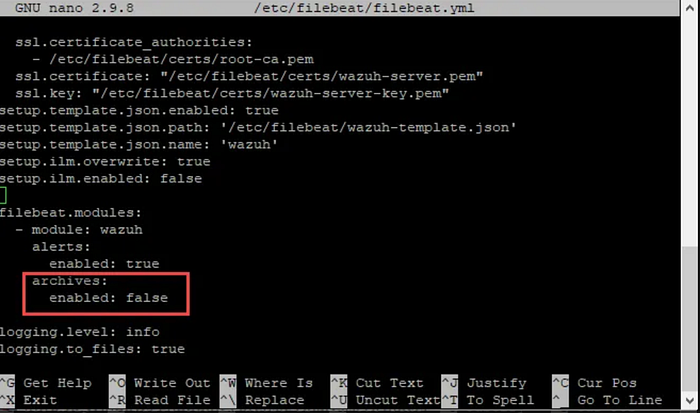
To this:

7. Save the file by selecting ctrl-X
8. Restart the filebeat service.
sudo systemctl restart filebeat9. Go back to the Wazuh dashboard and select the hamburger menu in the upper right and scoll down to Management →Stack Management

10. Select "Index Patterns" and then select "Create Index Pattern"

11. in wazuh-archives-*, you should see the wazuh-archive. Then select "Next Step"

12. Select "timestamp" from the drop down and then select "Create Index Pattern".

13. Restart wazuh manager via command line.
sudo systemctl restart wazuh-manager.service14. Go back to the hamburger menu and select Discover.

15. Select wazuh-archives

Integrating Windows Defender and PowerShell Logs
Windows Defender logs
Windows Defender stands out as the predominant free antivirus solution for PC users, commanding approximately 40% of the market share among free antivirus software options.
Windows Defender logs can play a crucial role in aiding SOC analysts to grasp the security posture of endpoints, discern potential cyber threats, and conduct thorough investigations into security incidents. These logs contain various types of data including scan activities, threat detections, updates, quarantine actions, remediation efforts, firewall and network activities, as well as real-time protection events.
By default, Wazuh does not read the Windows Defender logs; however, we can configure Wazuh to integrate Windows Defender logs.
PowerShell Logs
Windows PowerShell Log: This log captures general operational information about PowerShell, including startup, shutdown, and errors encountered during execution. You can find this log under "Applications and Services Logs" -> "Microsoft" -> "Windows" -> "PowerShell".
Windows PowerShell Operational Log: This log provides detailed information about PowerShell script execution, module loading, and other operational events. It's particularly useful for auditing purposes as it logs detailed information about script blocks executed within PowerShell. You can find this log under "Applications and Services Logs" -> "Microsoft" -> "Windows" -> "PowerShell" -> "Operational".
- Script Block Logging: PowerShell can be configured to log script block execution, capturing the contents of scripts as they're executed. This is a powerful auditing tool for tracking exactly what commands were run on a system.
- Module Logging: PowerShell logs information about the loading and unloading of modules. This can help administrators understand which modules are being used and when they are being accessed.
- Transcription Logging: PowerShell can be configured to log the input and output of PowerShell sessions, effectively recording interactive PowerShell sessions. This is particularly useful for compliance and security purposes.
Adding logging to the ossec configuration file.
- On the Windows VM: Use a text editor (notepad++ or notepad) as an Administrator and edit the
C:\\\\Program Files (x86)\\\\ossec-agent\\\\ossec.conffile and add the following entries:
 <localfile>
   <location>Microsoft-Windows-Windows Defender/Operational</location>
   <log_format>eventchannel</log_format>
  </localfile>

  <localfile>
   <location>System</location>
   <log_format>eventchannel</log_format>
  </localfile>

  <localfile>
   <location>active-response\active-responses.log</location>
   <log_format>syslog</log_format>
  </localfile>

  <localfile>
   <location>Microsoft-Windows-Sysmon/Operational</location>
   <log_format>eventchannel</log_format>
  </localfile>

  <localfile>
   <location>Windows PowerShell</location>
   <log_format>eventchannel</log_format>
  </localfile>

  <localfile>
   <location>Microsoft-Windows-PowerShell/Operational</location>
   <log_format>eventchannel</log_format>
  </localfile>
Make sure to pay attention to the identations.
Note that if you disabled Windows Defender in prevous labs, you will need to enable it in order for the logs to be forwarded to Wazuh.
Restart Wazuh service using PowerShell
NET STOP WazuhSvc
NET START WazuhSvc
Enable Windows Defender
You can skip this section if you did not use Group Policy to disable Windows Defender. However, if you followed the instructions in the Configure Windows 10/11 to disable Windows Defender by using Group Policy, use the instructions below to enable Windows Defender.
- In the search window type "gpedit"

2. Go to Windows Components.

3. Select Microsoft Defender Antivirus and go to Turn off Microsoft Defender Antivirus.

4. Select Disabled and OK. To be clear, you are disabling the Turn off Microsoft Defender Antivirus policy, which essentially enables Microsoft Defender Antivirus.

5. Go to Real-Time Protection and select the Turn off real-time protection policy and disable it. Once again, by disabling the "Turn off" policy, you are enabling it.


6. You must restart the VM for those changes to take place.
Testing both Windows Defender and PowerShell Integrations
To test the Windows Defender integration we will download another eicar file using the PowerShell script below.
Invoke-WebRequest -Uri https://wildfire.paloaltonetworks.com/publicapi/test/pe -OutFile C:/Users/m122/Downloads/pe.exe

Additionally, we see PowerShell logging picked it up.

Troubleshooting Logging
If events are not showing up in the Discovery feature of Wazuh, you can check the archives log with the following command. We will grep for pe.exe, the name of the EICAR file we executed earlier.
sudo cat /var/ossec/logs/archives/archives.json | grep -i pe.exeAs seen below there were multiple hits.

Another way to troubleshoot is to go back to the VM and look at the logging with Event Viewer.
As seen below, PowerShell logging did pick it up.

Conclusion
The VirusTotal and Windows Defender integrations provide centralized visibility into malware activity across multiple endpoints through a single interface, the Wazuh Security Events Dashboard. By combining endpoint telemetry with external threat intelligence, Wazuh becomes far more effective at identifying suspicious behavior and validating potential threats.
Enabling full log archiving ensures that all collected events are retained, not just those that trigger alerts. This expanded visibility is critical for conducting incident response, forensic investigations, and proactive threat hunting. With these integrations in place, the lab environment is now well positioned to detect, analyze, and respond to malicious activity with greater depth and confidence.