

In today's rapidly evolving technological landscape, integrating payment processing capabilities into applications has become more streamlined with the emergence of Model Context Protocol (MCP) servers. The Stripe MCP Server stands at the forefront of this innovation, offering developers a powerful way to interact with Stripe's payment infrastructure through natural language instructions. This comprehensive guide will walk you through what Stripe MCP Server is, how to set it up, and how to leverage its capabilities to transform your payment API development process.
Pro Tip: Boost your AI development workflow by integrating the Apidog MCP Server into your IDE. This gives your AI assistant real-time access to API specifications, enabling it to generate code, refine documentation, and streamline data model creation — all while ensuring alignment with your API design. 🚀
Understanding Stripe MCP Server and Its Capabilities
What is Model Context Protocol (MCP)?
Model Context Protocol (MCP) serves as a bridge between large language models (LLMs) and external applications, providing a standardized method for AI assistants to connect with specialized knowledge sources and functionality. MCP follows a client-server architecture where an MCP Host (like Claude Desktop or code editors with AI capabilities) connects to multiple MCP Servers that interact with various data sources and APIs.
What is Stripe MCP Server?
Stripe MCP Server is a specialized implementation that enables AI assistants to directly interact with Stripe's payment processing services. It provides a set of tools that allow developers to perform Stripe operations through natural language instructions, dramatically simplifying the integration of payment functionality into applications. By connecting AI assistants to Stripe's comprehensive payment infrastructure, the server reduces the learning curve and accelerates development for both experienced Stripe developers and those new to payment processing.
Key Features of Stripe MCP Server
The Stripe MCP Server provides several powerful tools organized into three primary categories:
1. Customer Management
- customer_create: Create new customer profiles with email, name, and other details
- customer_retrieve: Access existing customer information by ID
- customer_update: Modify customer data as needed
2. Payment Operations
- payment_intent_create: Initialize payment processing with amount, currency, and customer details
- charge_list: View recent transaction history and payment statuses
3. Refund Operations
- refund_create: Process refunds for completed transactions
Setting Up Stripe MCP Server
Setting up the Stripe MCP Server requires minimal configuration but does require a valid Stripe API key. Here's a step-by-step guide to get you started:
Prerequisites
- Python 3.8 or higher
- MCP SDK 0.1.0+
- Stripe Python SDK
- dotenv
- A Stripe API key (test or live)
Installation Options
Option 1: Install via Smithery (Recommended)
The simplest approach is to use Smithery for automatic installation:
npx -y @smithery/cli install @atharvagupta2003/mcp-stripe --client claudeOption 2: Install via NPX (Official Method)
Stripe provides an official MCP server that you can run directly:
npx -y @stripe/mcp --tools=all --api-key=sk_test_YOUR_API_KEYOption 3: Manual Installation
For more control over the installation process:
- Clone the repository or create a dedicated project directory
- Set up a Python virtual environment:
python -m venv venv source venv/bin/activate # On macOS/Linux venv\Scripts\activate # On Windows
- Install the dependencies:
pip install -e .
Configure Environment Variables
Create a .env file with your Stripe API key:
STRIPE_API_KEY=your_stripe_secret_keyConfigure MCP Client
Next, you'll need to configure your MCP client to connect to the Stripe MCP Server. The configuration process varies depending on the client you're using.
For Claude Desktop
Add the following to your claude_desktop_config.json file:
{
  "mcpServers": {
    "stripe": {
      "command": "npx",
      "args": ["-y", "@stripe/mcp", "--tools=all"],
      "env": {
        "STRIPE_SECRET_KEY": "sk_test_YOUR_API_KEY"
      }
    }
  }
}
Location of the configuration file:
- Windows:
C:\Users\username\AppData\Roaming\Claude\claude_desktop_config.json - macOS:
~/Library/Application Support/Claude/claude_desktop_config.json
For Cursor IDE
Add the following to your .cursor/mcp.json file:
{
  "mcpServers": {
    "stripe": {
      "command": "npx",
      "args": ["-y", "@stripe/mcp", "--tools=all"],
      "env": {
        "STRIPE_SECRET_KEY": "sk_test_YOUR_API_KEY"
      }
    }
  }
}
Working with Stripe MCP Server
Once set up, you can start interacting with the Stripe MCP Server through your AI assistant. Here are some practical examples of how to use it:
Creating a New Customer
Simply ask your AI assistant: "Create a new customer with email customer@example.com and name John Doe"
The AI will use the Stripe MCP Server to execute the customer_create function with the appropriate parameters.
Processing a Payment
To process a payment, you might say: "Create a payment intent for $50 in USD for customer John Doe"
This will trigger the payment_intent_create function with the specified amount, currency, and customer details.
Viewing Transaction History
To check recent transactions: "Show me the recent charges on our Stripe account"
This will invoke the charge_list function to retrieve transaction history.
Processing a Refund
When you need to issue a refund: "Process a refund for charge ch_123456789"
The AI will utilize the refund_create function to process the refund for the specified charge.
Integrating Stripe MCP Server in Development Workflows
The Stripe MCP Server can be integrated into various development workflows to enhance productivity and reduce the time spent on payment integration tasks.
Code Generation
When working with code editors that support AI, you can use the Stripe MCP Server to generate code snippets for Stripe integration:
"Generate JavaScript code to create a payment intent for $100"
The AI will provide code that correctly implements Stripe API patterns, saving you time and reducing the risk of implementation errors.
Documentation Assistance
When you need information about Stripe features:
"How do I implement Strong Customer Authentication in my Stripe integration?"
The AI can access Stripe documentation through the MCP server and provide detailed guidance tailored to your question.
Troubleshooting
For help with debugging issues:
"Why am I getting an 'invalid_request_error' when creating a payment intent?"
The AI can analyze common causes of the error and suggest solutions based on Stripe's best practices.
Advanced Usage: Combining with Other MCP Servers
For a more comprehensive development environment, you can combine the Stripe MCP Server with other MCP servers, such as the Apidog MCP Server. This combination enables AI assistants to access both Stripe's payment processing capabilities and your custom API specifications, creating a unified development experience.
To configure multiple MCP servers, simply add them to your configuration file:
{
  "mcpServers": {
    "stripe": {
      "command": "npx",
      "args": ["-y", "@stripe/mcp", "--tools=all"],
      "env": {
        "STRIPE_SECRET_KEY": "sk_test_YOUR_API_KEY"
      }
    },
    "apidog-mcp": {
      "command": "npx",
      "args": [
        "-y",
        "apidog-mcp-server@latest",
        "--project=<project-id>"
      ],
      "env": {
        "APIDOG_ACCESS_TOKEN": "<access-token>"
      }
    }
  }
}
This integration allows you to:
- Generate Stripe integration code
- Implement custom API endpoints that interact with Stripe
- Create data transformation functions between Stripe data structures and your own
- Build comprehensive e-commerce payment systems with AI assistance
Best Practices for Using Stripe MCP Server
Security Considerations
- Use Test Keys in Development: Always use Stripe test keys during development and testing.
- Secure API Keys: Never commit API keys to version control. Use environment variables or secure key management.
- Review AI-Generated Code: Always review and test code generated by AI assistants before deploying to production.
Performance Optimization
- Limit Concurrent Requests: Avoid overwhelming the Stripe API with too many concurrent requests.
- Cache Common Responses: Consider caching responses for frequently accessed data.
- Use Batch Operations: When available, use batch operations to reduce the number of API calls.
Error Handling
- Implement Proper Error Handling: Ensure all code generated via MCP includes proper error handling.
- Log Errors: Set up logging for errors to facilitate troubleshooting.
- Implement Retry Logic: For network-related failures, implement appropriate retry logic.
Conclusion
The Stripe MCP Server represents a significant advancement in payment API development, bridging the gap between AI assistants and Stripe's robust payment infrastructure. By enabling natural language interaction with complex payment APIs, it reduces the learning curve and accelerates development for both experienced Stripe developers and newcomers to payment processing.
Setting up the server requires minimal configuration, and once in place, it provides powerful tools for customer management, payment operations, and refund processing. When integrated into your development workflow, the Stripe MCP Server can enhance productivity, reduce implementation errors, and facilitate seamless payment integration.
As the adoption of MCP continues to grow, we can expect even more powerful integrations between AI assistants and external services, further transforming how developers interact with APIs and build sophisticated applications. By embracing the Stripe MCP Server today, you're not only simplifying your payment integration tasks but also positioning yourself at the forefront of the evolving AI-assisted development landscape.
Whether you're building a simple e-commerce site or a complex marketplace platform, the Stripe MCP Server provides the tools you need to integrate Stripe's payment processing capabilities quickly and efficiently, allowing you to focus on delivering value to your users rather than wrestling with API documentation and implementation details.
Before we conclude, let's talk about something that we all face during development: API Testing with Postman for your Development Team.
Yeah, I've heard of it as well, Postman is getting worse year by year, but, you are working as a team and you need some collaboration tools for your development process, right? So you paid Postman Enterprise for…. $49/month.
Now I am telling you: You Don't Have to:
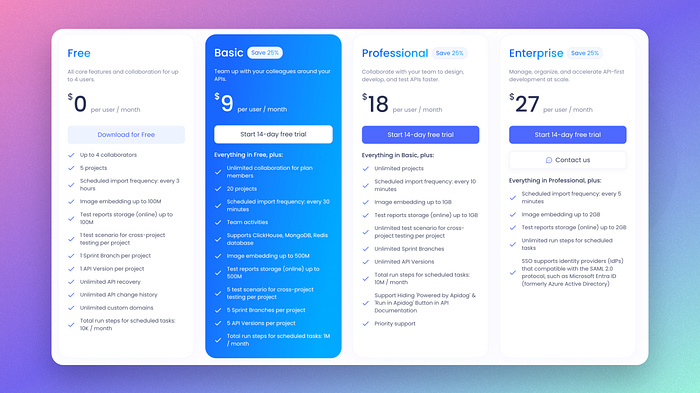
That's right, APIDog gives you all the features that comes with Postman paid version, at a fraction of the cost. Migration has been so easily that you only need to click a few buttons, and APIDog will do everything for you.
APIDog has a comprehensive, easy to use GUI that makes you spend no time to get started working (If you have migrated from Postman). It's elegant, collaborate, easy to use, with Dark Mode too!

Want a Good Alternative to Postman? APIDog is definitely worth a shot. But if you are the Tech Lead of a Dev Team that really want to dump Postman for something Better, and Cheaper, Check out APIDog!